
Where the team works day to day
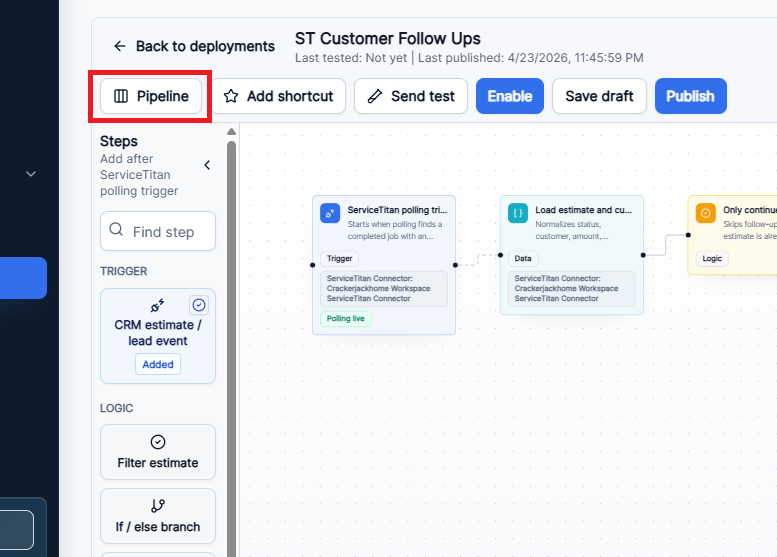
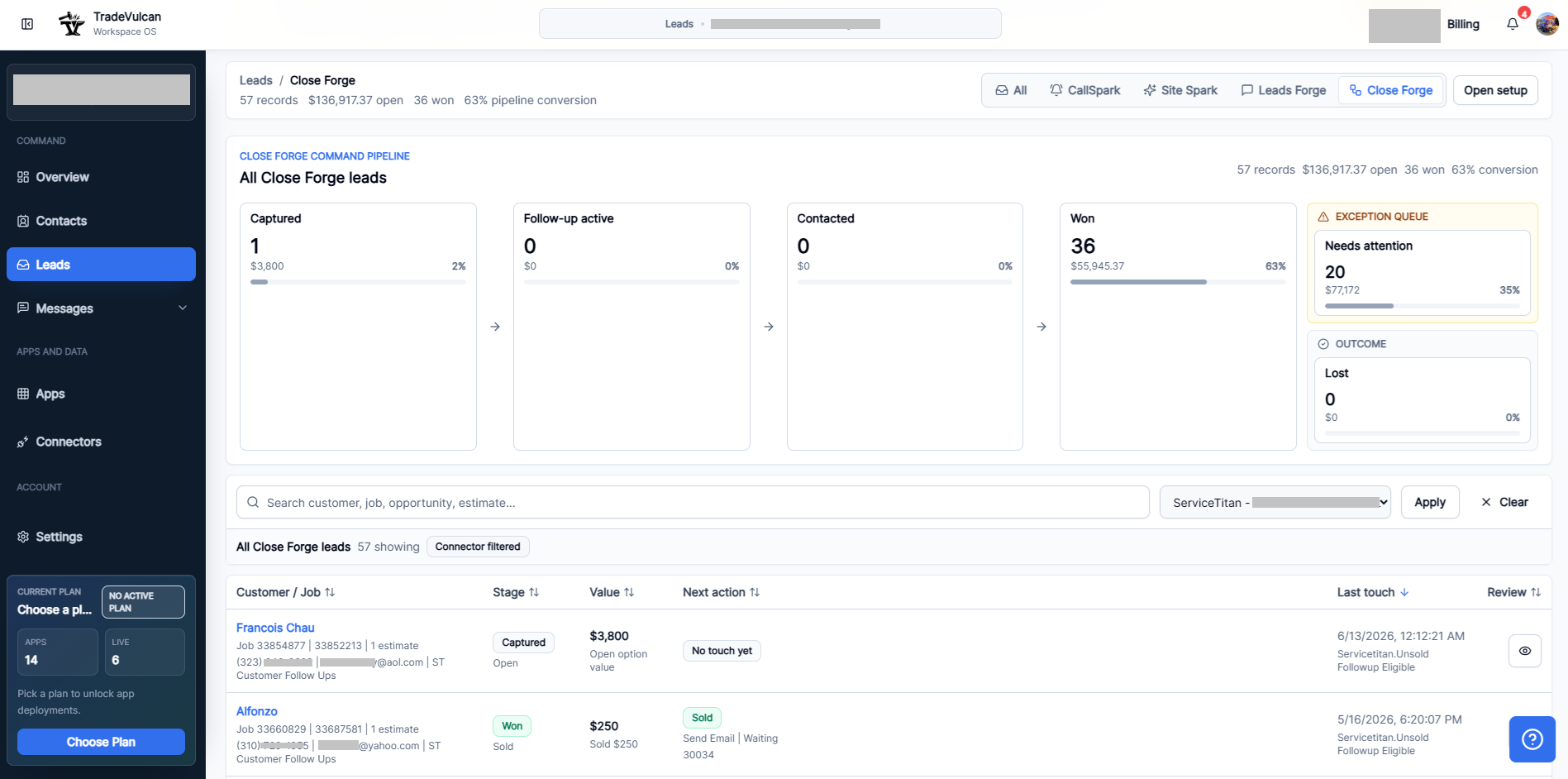
After Close Forge is live, the setup page is not the daily workspace. Owners and sales managers should use the Leads pipeline view to watch opportunities, clear exceptions, and understand whether follow-up is converting.
Understand pipeline stages
| Stage | Meaning | Owner action |
|---|---|---|
| Captured | An estimate or opportunity was captured from the CRM. | Confirm the value and contact details look reasonable. |
| Follow-up active | A run or message is queued. | Watch for replies and make sure queue volume is expected. |
| Contacted | At least one customer touch has been sent. | Review reply quality and whether the next human action is clear. |
| Needs attention | A run, message, or step is failed, blocked, stopped, skipped, or missing information. | Open the record drawer or run logs, then fix the setup, contact, or workflow issue. |
| Won | The estimate is sold, approved, accepted, booked, or manually marked won. | Use this as conversion feedback and review whether follow-up helped. |
| Lost | The opportunity is rejected, declined, canceled, or manually marked lost. | Review patterns before changing copy or timing. |
Use run logs and status labels
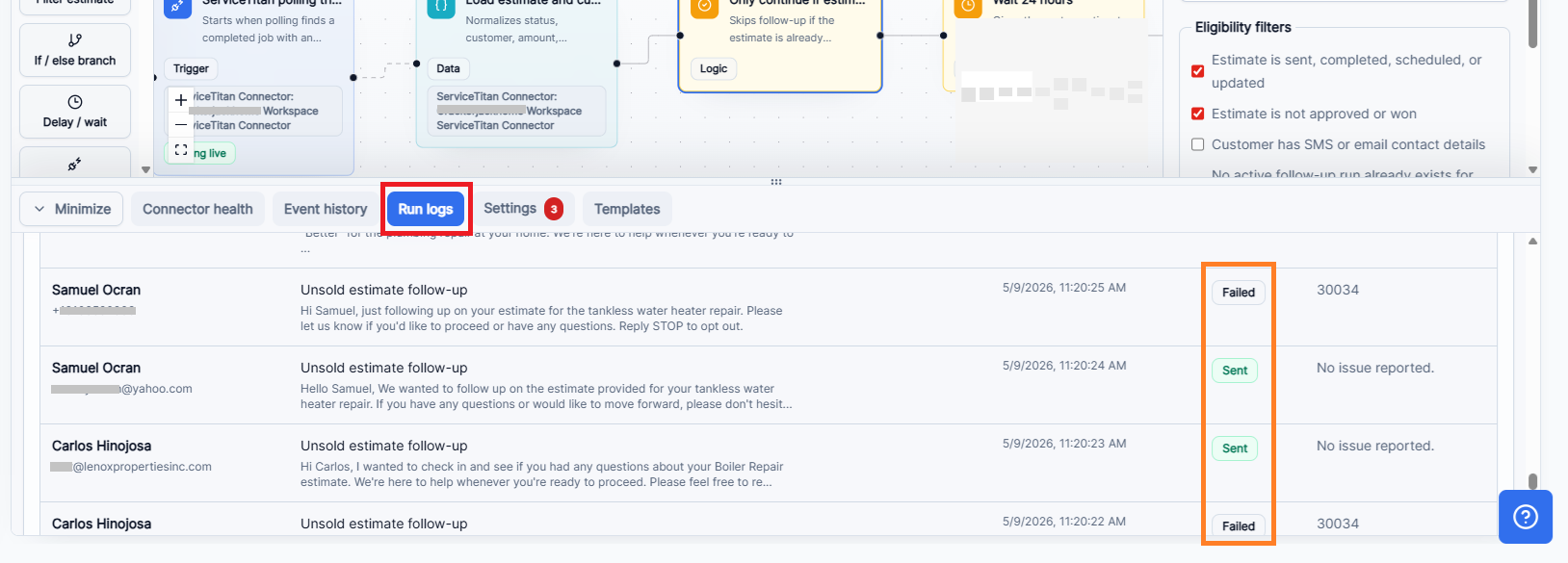
| Status | What it means | Next action |
|---|---|---|
| Queued | Close Forge created the message or run and it is waiting for its scheduled time or send window. | No action unless queue volume is unexpected. |
| Sent | The message was successfully sent through the provider rail. | Watch for replies and stage movement. |
| Skipped | Close Forge decided not to send because a rule or stop condition applied. | Open the reason. Skips are often correct for sold, duplicate, missing-contact, or opted-out records. |
| Blocked | A guardrail prevented sending. | Check compliance, suppression, contact quality, or commercial access. |
| Failed | The provider or workflow could not complete the action. | Open the error, repair the cause, and test again. |
| Stopped | The run was intentionally ended by a stop condition or manual action. | Confirm the stop reason matches the customer situation. |
Review customer and contact records
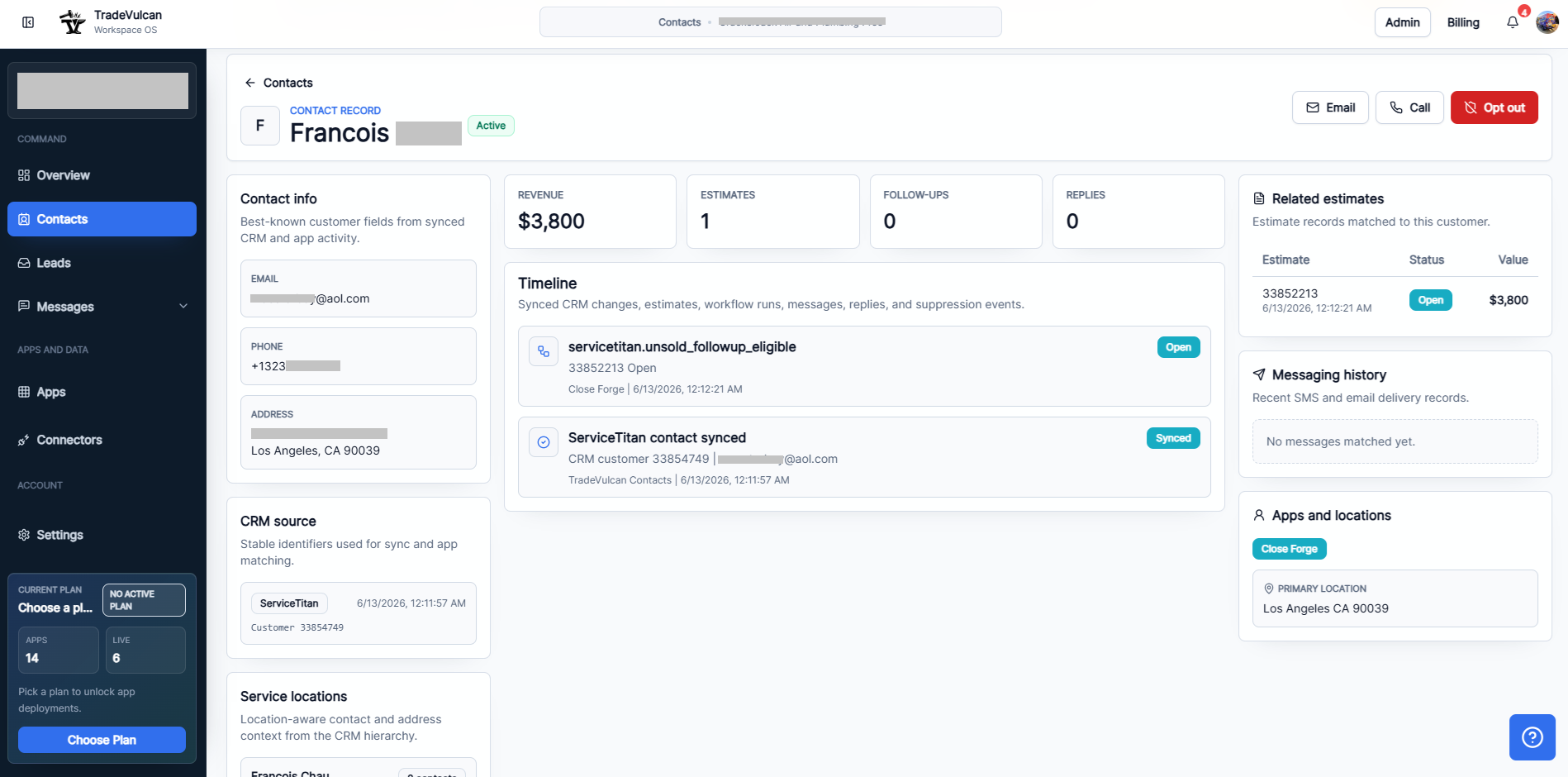
Use contact records when a pipeline item needs context. A contact record helps answer: Who is the customer? Which CRM record created the estimate? Has the customer replied before? Is there a related estimate? Which TradeVulcan app touched this customer?
Use the record drawer for manual decisions
When you open a Close Forge pipeline record, the drawer shows stage, provider, option value, sold option, highest option, current workflow step, delivery status, messages, estimate options, line items, photos or attachments, and step history. Managers can move records to active, contacted, won, lost, archived, or clear a manual move without changing the CRM estimate status.
Optimization workflow
- Start with the exception queue. Failed and blocked records tell you whether setup, contact data, compliance, or template logic needs repair.
- Read skipped reasons before changing rules. A skip can be good if Close Forge protected a sold, duplicate, opted-out, or missing-contact record.
- Compare captured to contacted. If many records stay captured, check triggers, delays, send windows, and required contact filters.
- Compare contacted to won. If messages send but nothing moves, review copy, timing, estimate quality, and human response time.
- Review lost records monthly. Look for common objections: price, timing, financing, scope confusion, missing proof, or slow sales response.
- Tune one thing at a time. Change either copy, delay, eligibility, or review rules, then watch the next cohort.
Weekly scorecard
| Metric | Why it matters | Healthy signal |
|---|---|---|
| Captured records | Shows whether the CRM source is feeding Close Forge. | Matches the expected volume of open estimates. |
| Needs attention rate | Shows setup, data, provider, or workflow friction. | Low and shrinking after first launch week. |
| Sent rate | Shows whether eligible records receive outreach. | High for records with valid contact details and no stop conditions. |
| Reply rate | Shows whether copy invites customer response. | Improves when messages are helpful and specific. |
| Won conversion | Shows whether follow-up helps recover revenue. | Improves over the baseline unsold-estimate close rate. |
| Time to first touch | Shows whether follow-up happens while the visit is still fresh. | Same-day where appropriate and inside business send windows. |
Optimization tips for better results
- Segment high-value estimates into human-reviewed paths.
- Use proof or project context in email when the customer needs confidence, but keep SMS concise.
- Keep first-touch timing close to the estimate while the visit is still memorable.
- Do not add too many touches. More messages can reduce trust if the customer feels pressured.
- When a customer replies, make sure a human responds quickly. Automation should create momentum, not replace sales ownership.
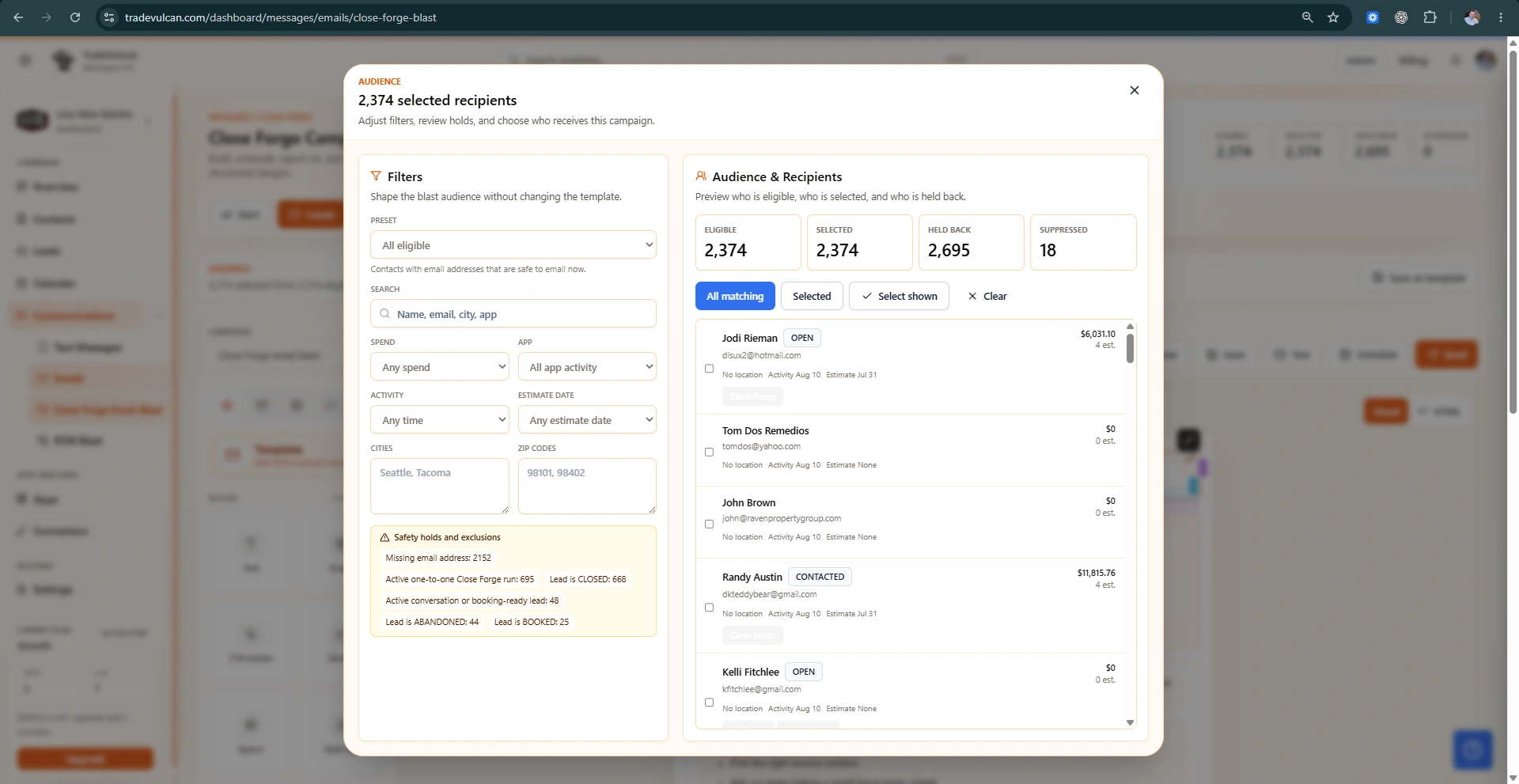
- Use Close Forge Email Blast carefully for selected, eligible contact lists when the workspace plan allows it. Always preview the audience and exclude opt-outs.