
Builder mental model
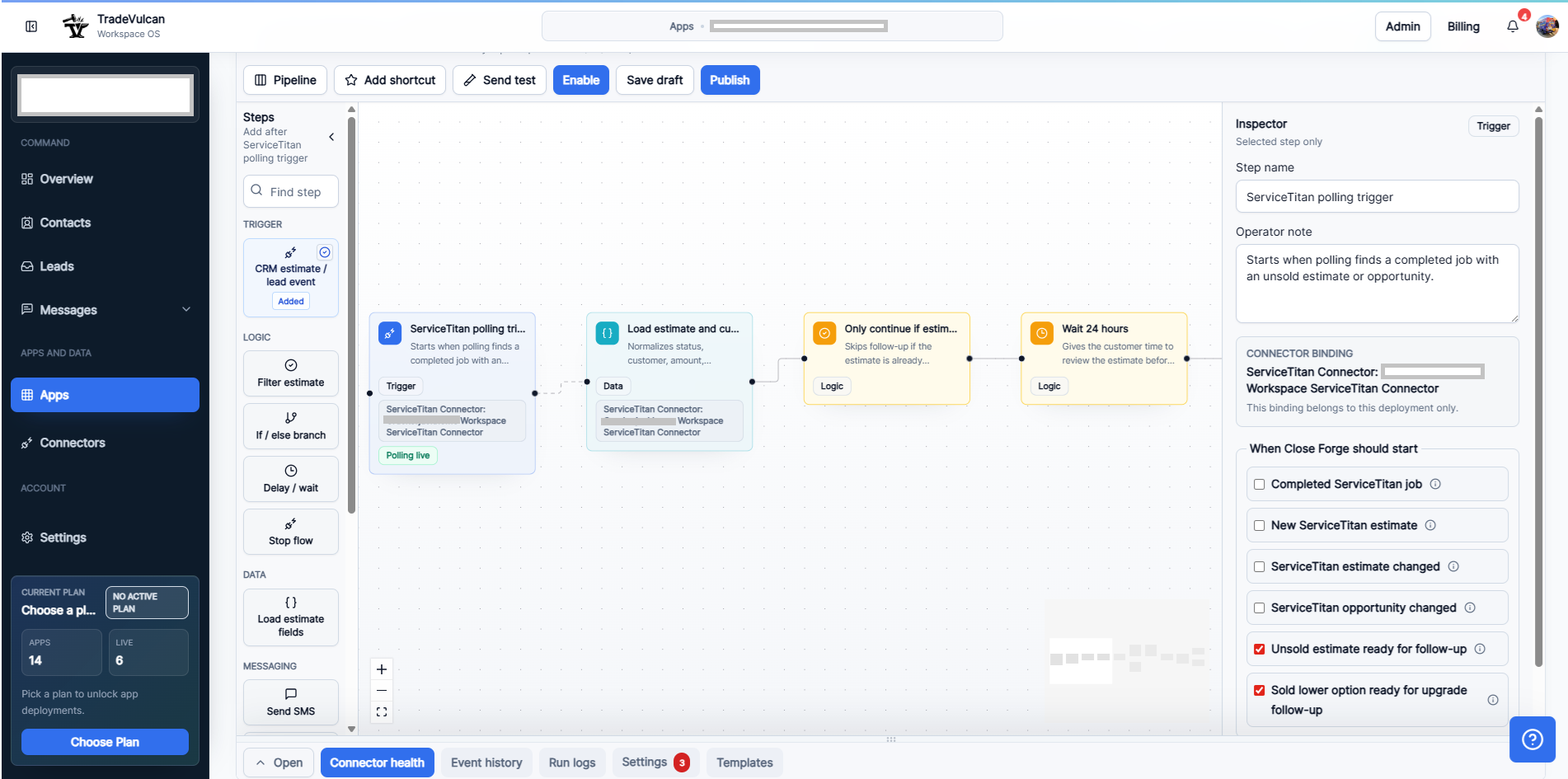
The Close Forge builder is designed around three areas: the step selector on the left, the workflow canvas in the center, and the selected-step inspector on the right. The bottom tray holds connector health, event history, run logs, settings, and templates.
Use the step selector and inspector
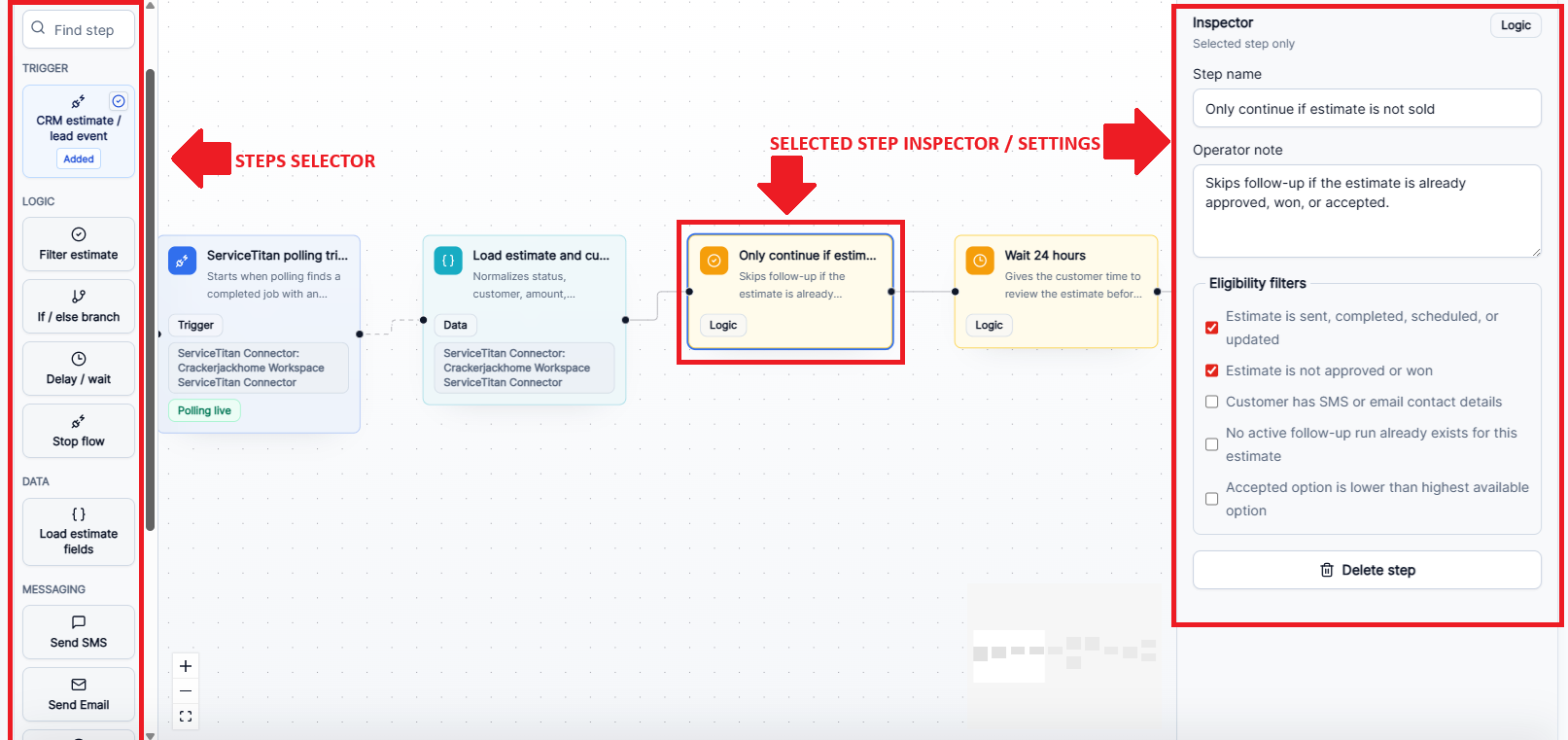
- Select a step on the canvas.
- Read the step name and operator note in the inspector.
- Adjust only the fields for that step. For example, a filter step shows eligibility filters, while a trigger step shows event types.
- Use checkboxes for eligibility or stop conditions instead of changing copy in unrelated steps.
- After editing, choose Save draft.
- When the workflow is ready, choose Publish to sync it to the execution engine.
Step types business owners should understand
| Step type | Purpose | Owner guidance |
|---|---|---|
| Trigger | Starts the workflow from a CRM event, webhook, or ServiceTitan polling reconciliation. | Keep one start event per workflow. Duplicate triggers can make results confusing. |
| Load estimate fields | Normalizes customer, job, opportunity, estimate, option, and contact data. | Use this before filters, templates, or AI steps that need reliable customer context. |
| Filter estimate | Prevents unsafe or irrelevant follow-up. | Require unsold status, contact details, and duplicate protection for normal launches. |
| Delay / wait | Spaces out touches and keeps messages from firing too quickly. | Start with a short same-day check and a later business checkpoint rather than many touches. |
| If / else branch | Routes customers by contact method, status, amount, trade, or prior decision. | Use branches when SMS and email need different paths. |
| Send SMS | Queues a compliant text through the workspace messaging rail. | Keep SMS short, reply-friendly, and opt-out compliant. |
| Send Email | Queues a follow-up email through the verified sender rail. | Use email for longer explanation, estimate summaries, and option clarity. |
| AI draft or rewrite | Uses Vulcan Intelligence for reviewed copy assistance. | Use human review for AI copy, high-value estimates, or sensitive option comparison. |
| Stop flow | Ends the run when follow-up should not continue. | Always stop for sold work, replies, opt-outs, canceled estimates, and manual stops. |
Use the bottom tray
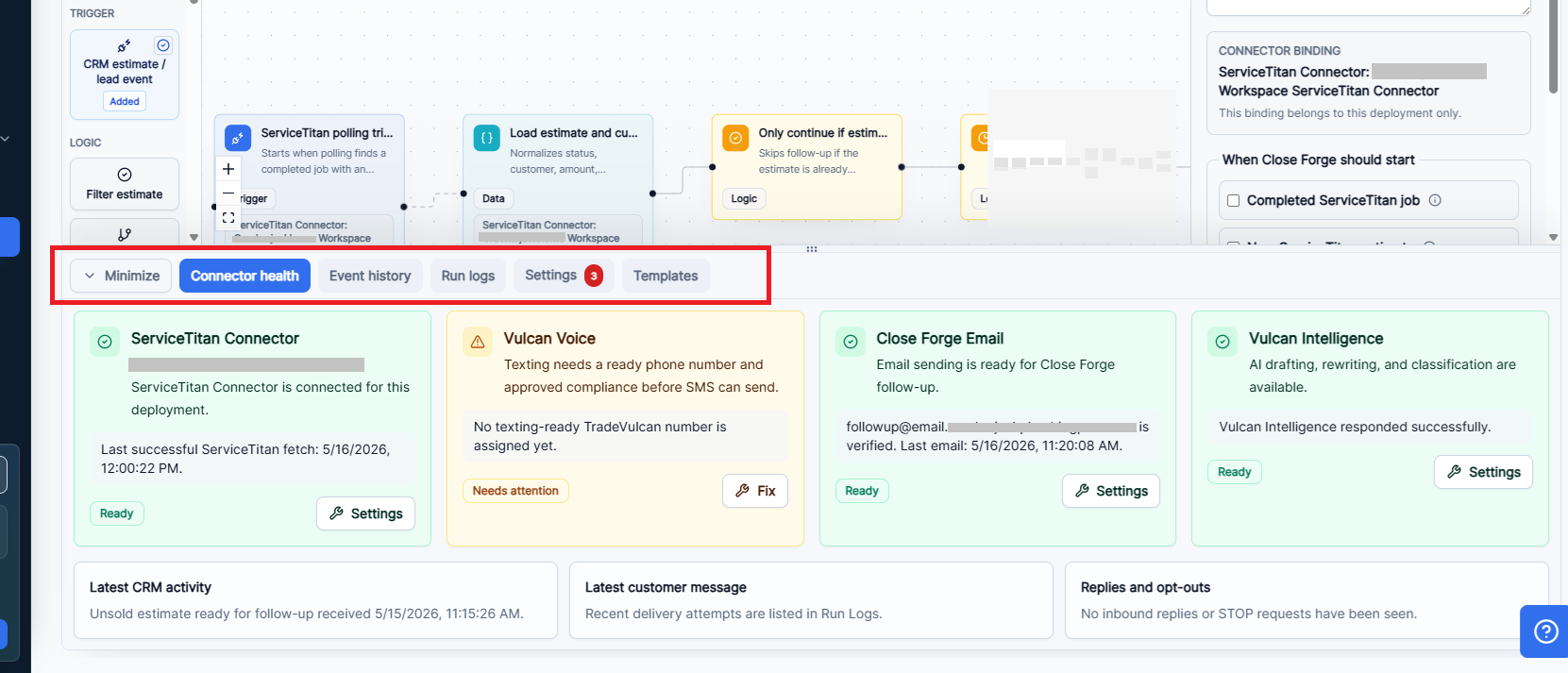
- Connector health: confirms CRM, SMS, email, and Vulcan Intelligence readiness for this deployment.
- Event history: shows CRM events and normalized Close Forge activity.
- Run logs: shows each customer follow-up attempt and delivery status.
- Settings: summarizes business name, sending windows, quiet hours, sender defaults, validation warnings, and go-live setup.
- Templates: manages reusable email and text content for the deployment.
Edit email and text templates
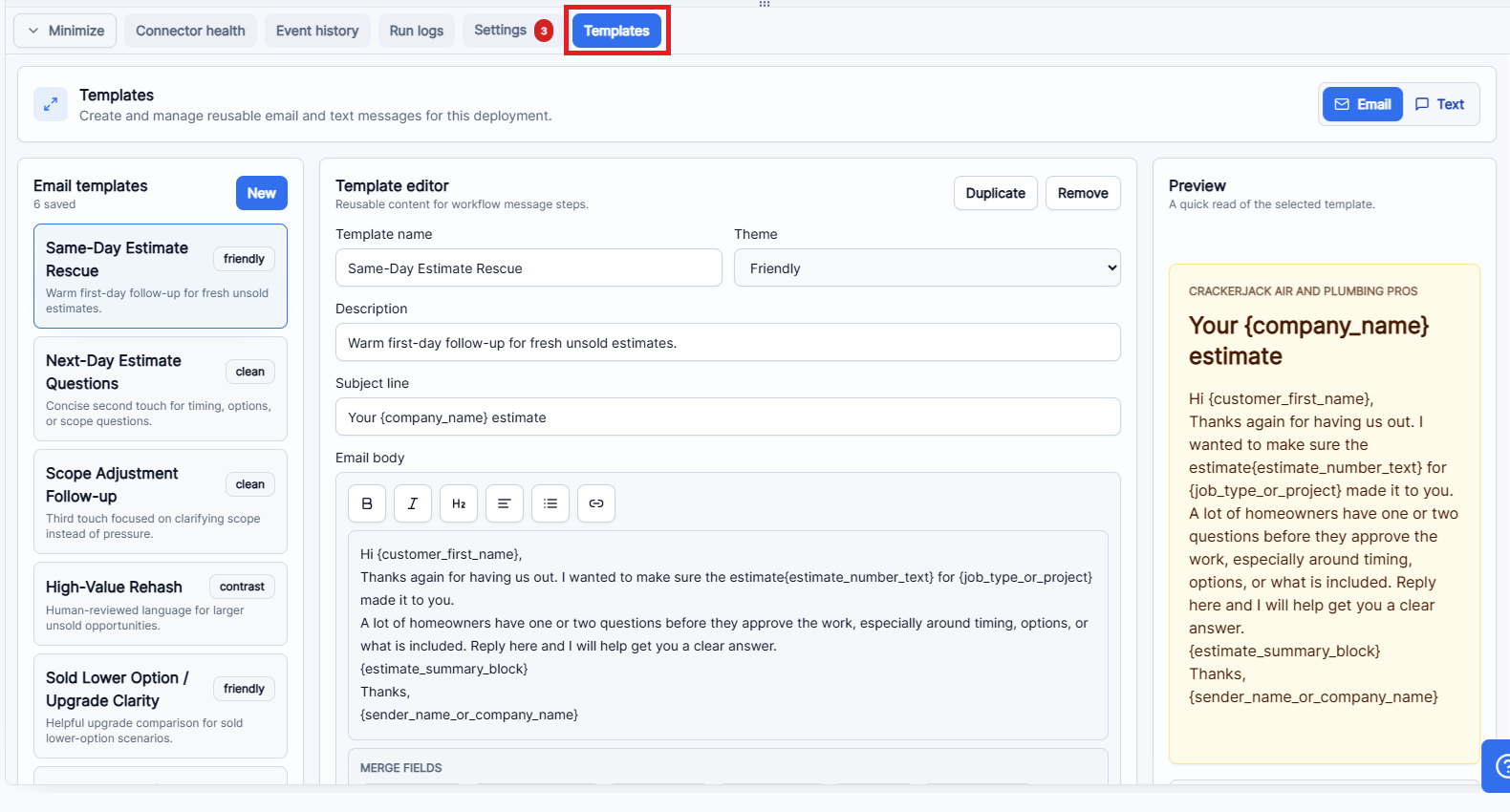
- Open the builder and expand the bottom tray.
- Select Templates.
- Choose Email or Text.
- Select an existing template or choose New.
- Use a clear template name such as Same-Day Estimate Rescue or Next-Day Estimate Questions.
- Write a short description so future managers know when to use it.
- For email, set the theme and subject line.
- Use merge fields such as
{customer_first_name},{job_type_or_project},{estimate_number_text}, and{sender_name_or_company_name}. - Read the preview as if you are the homeowner.
- Save templates, then test before publishing.
Recommended template rules
- Make the first touch useful, not pushy. Ask if the estimate was received and offer to clarify scope, timing, options, or scheduling.
- Use the customer first name only when the CRM data is reliable.
- Do not create fake urgency. Avoid language like last chance unless the business has a real, approved policy.
- Do not invent discounts, warranties, financing, or availability.
- Keep text messages under a readable length. Use email for detail-heavy explanation.
- Write templates that a real team member would be comfortable sending manually.
Safe editing workflow
- Clone or duplicate the current template before a major rewrite.
- Change one variable at a time: timing, message copy, filter, or stop condition.
- Send a test message to confirm merge fields render correctly.
- Review Run logs for skipped, blocked, or failed statuses after the next test.
- Publish only after the draft matches the operating process you want the team to follow.