
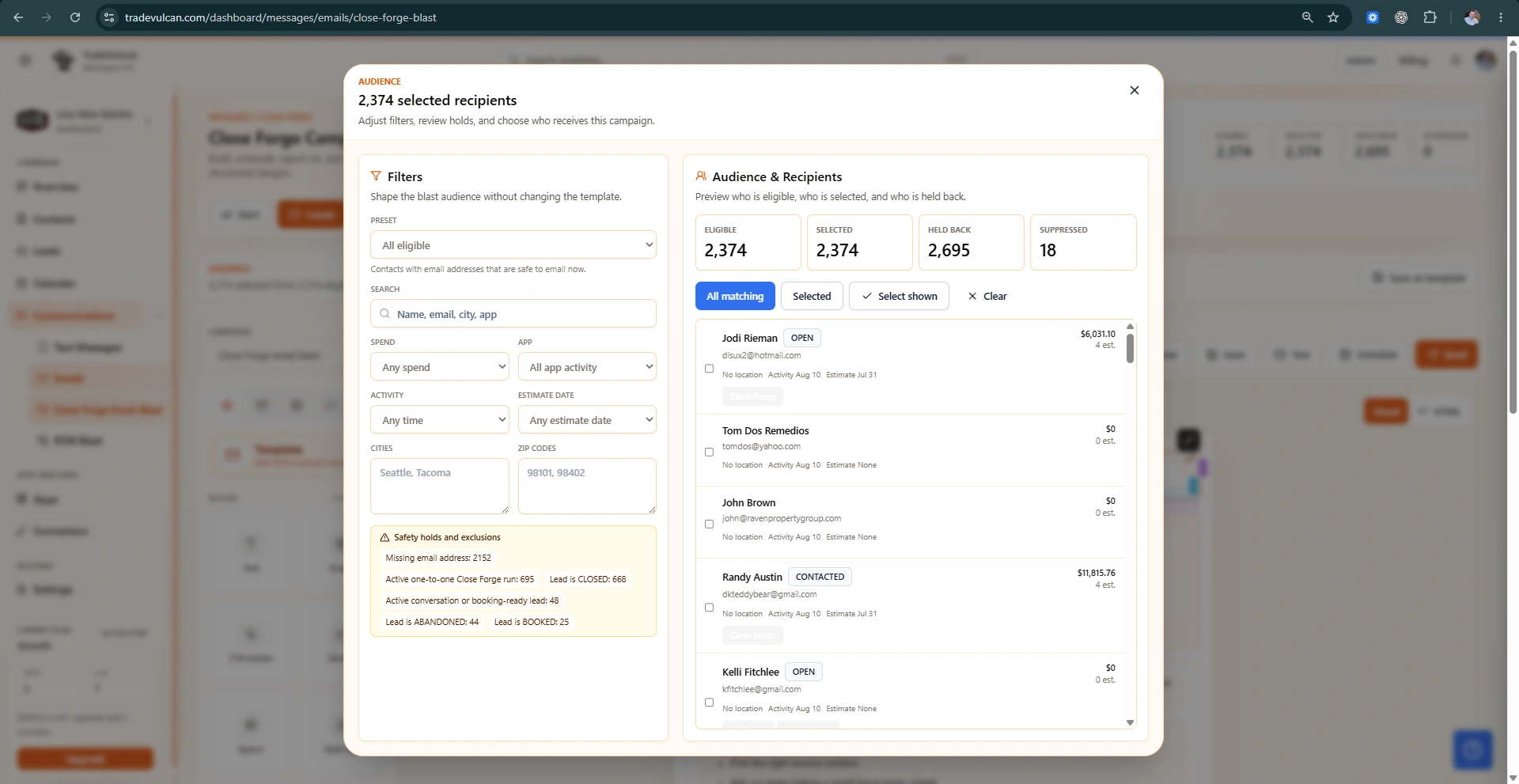
Before you create the deployment
Close Forge should be set up only after the workspace can safely identify customers, send messages, and stop follow-up when a customer should not be contacted. Prepare these items first:
- A compatible CRM connector: ServiceTitan or Housecall Pro, depending on the deployment.
- A connected CRM instance: the exact account or tenant Close Forge should read from.
- Verified email sending: a verified sender identity and reply-to plan for customer replies.
- Texting readiness: a TradeVulcan-managed number that is SMS capable.
- Messaging compliance approval: the workspace business profile and SMS use case should be approved before live texting.
- Business consent policy: your team should know when customers have consented to email or SMS follow-up.
Important: the consent attestation is a product guardrail, not legal advice. Confirm TCPA, CAN-SPAM, carrier, state, and customer-contract requirements with your own counsel or compliance advisor.
Create the deployment draft
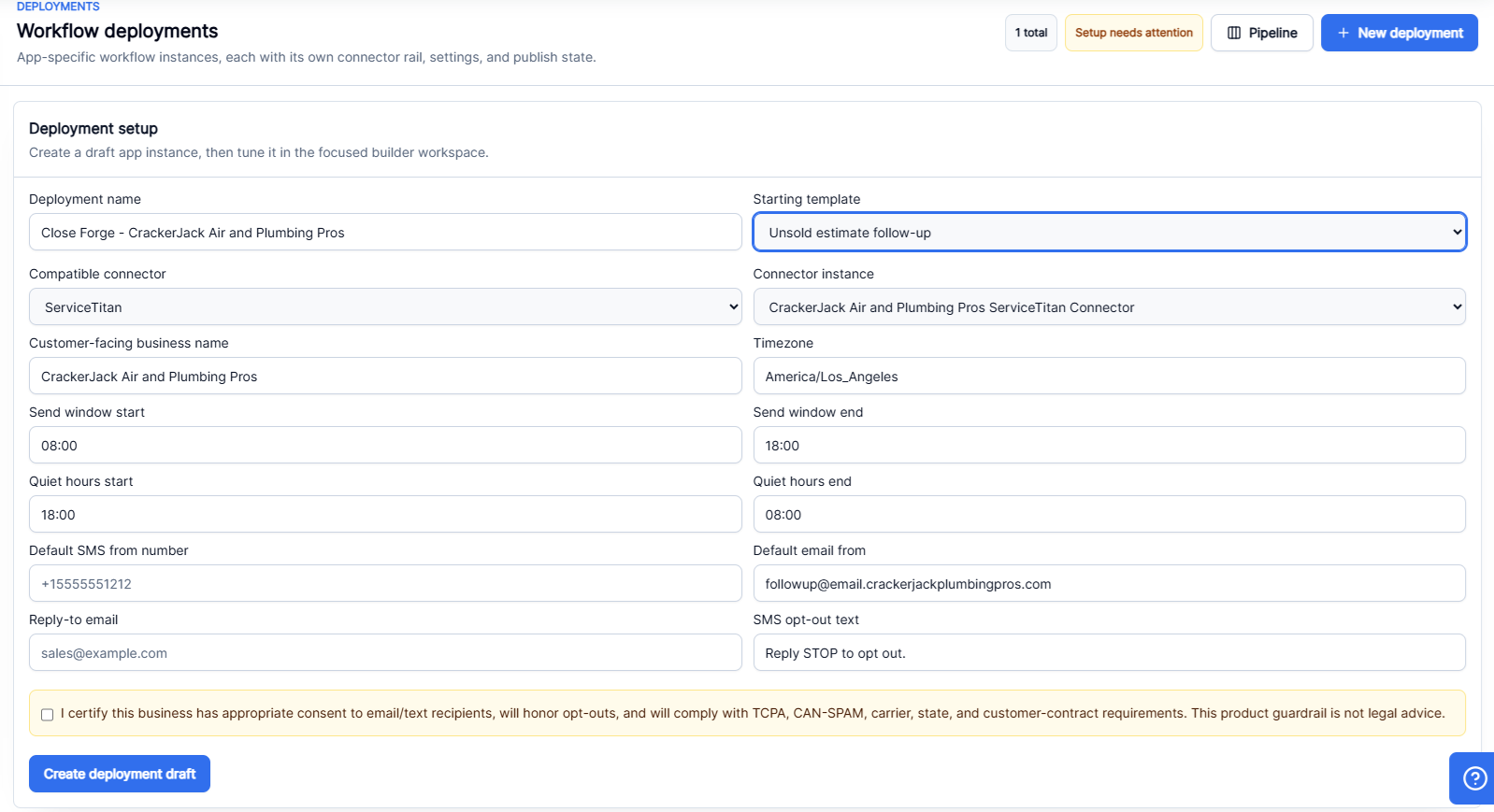
- Open Dashboard, then choose Apps.
- Select Close Forge.
- Choose New deployment or open the deployment setup form if it is already visible.
- Enter a clear Deployment name. Use the business name, location, connector, or campaign purpose so the deployment is easy to recognize later.
- Choose the Starting template. Use Unsold estimate follow-up for the first launch. Use Sold but not highest option follow-up when the team is ready for reviewed option-comparison messaging.
- Select the Compatible connector and the exact Connector instance.
- Enter the customer-facing Business name.
- Set the deployment Timezone.
- Set Send window start and Send window end. A common starting point is 8:00 AM to 6:00 PM local time.
- Set Quiet hours start and Quiet hours end. These should cover evenings and overnight hours.
- Add the default SMS from number only if it is a texting-ready TradeVulcan number.
- Add the default Email from and Reply-to email.
- Keep the SMS opt-out text clear, such as
Reply STOP to opt out. - Review and check the consent attestation.
- Select Create deployment draft.
Understand the go-live checklist
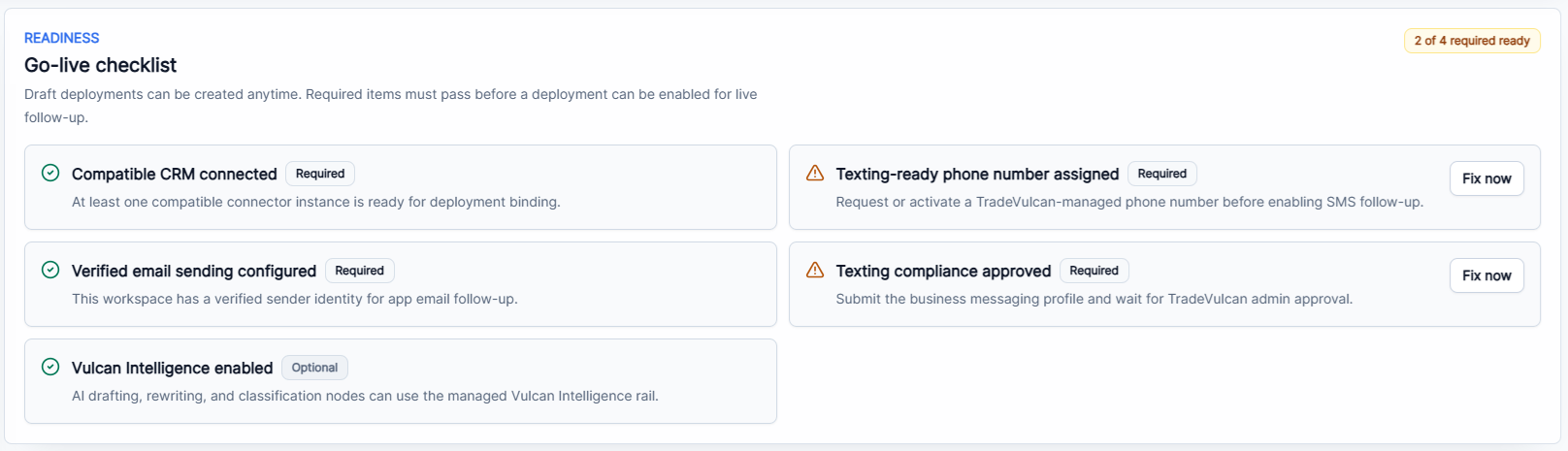
| Checklist item | Required? | What it means | What to do if it fails |
|---|---|---|---|
| Compatible CRM connected | Yes | At least one compatible connector instance is connected and can be bound to the deployment. | Open Connectors, repair the CRM instance, then return to Close Forge. |
| Texting-ready phone number assigned | Yes | The workspace has a TradeVulcan-managed number that can send SMS. | Open Messaging settings and request or activate the number. |
| Verified email sending configured | Yes | The workspace has a verified sender identity for app email follow-up. | Verify the domain and sender identity in email settings. |
| Texting compliance approved | Yes | The business messaging profile has passed approval for SMS sending. | Submit or repair the compliance profile and wait for approval. |
| Vulcan Intelligence enabled | No | AI drafting, rewriting, or classification can be used by optional workflow nodes. | Ask TradeVulcan admins to enable it if AI-assisted drafting is part of your launch plan. |
Publish and enable in the right order
- Save draft after editing workflow steps or templates.
- Send test to create a sample event or test message before going live.
- Review Connector health to confirm CRM, SMS, email, and Vulcan Intelligence readiness.
- Open Run logs and Event history after testing to confirm the workflow is behaving as expected.
- Publish the workflow. Publishing syncs the visual workflow into campaign execution records.
- Enable the deployment only after required readiness checks pass.
Launch checklist for business owners
- One deployment is bound to the correct CRM connector.
- Business name, timezone, send window, quiet hours, from number, from email, and reply-to email are correct.
- Email templates and text templates use your voice and do not promise unapproved offers.
- Stop conditions include sold estimates, replies, opt-outs, canceled estimates, and manual stops.
- At least one test event or test message has been reviewed.
- A manager knows where to check the Close Forge pipeline each day.
Common setup problems
| Symptom | Likely cause | Recommended fix |
|---|---|---|
| Enable redirects back with a readiness warning | One required checklist item is not ready | Open the checklist, use the Fix button, and enable again only after the item passes. |
| No new records appear in the pipeline | The CRM connector is not bound, polling has not run, or the test data is already sold/ineligible | Check Connector health and Event history, then send a sample event or run the CRM poll if available. |
| Email sends but SMS does not | Phone number or compliance readiness is missing | Confirm the default SMS number is texting-ready and compliance is approved. |
| Messages are skipped | The estimate is sold, missing contact details, duplicated, opted out, or already handled | Open Run logs and the record drawer to see the exact reason code. |