
Overview
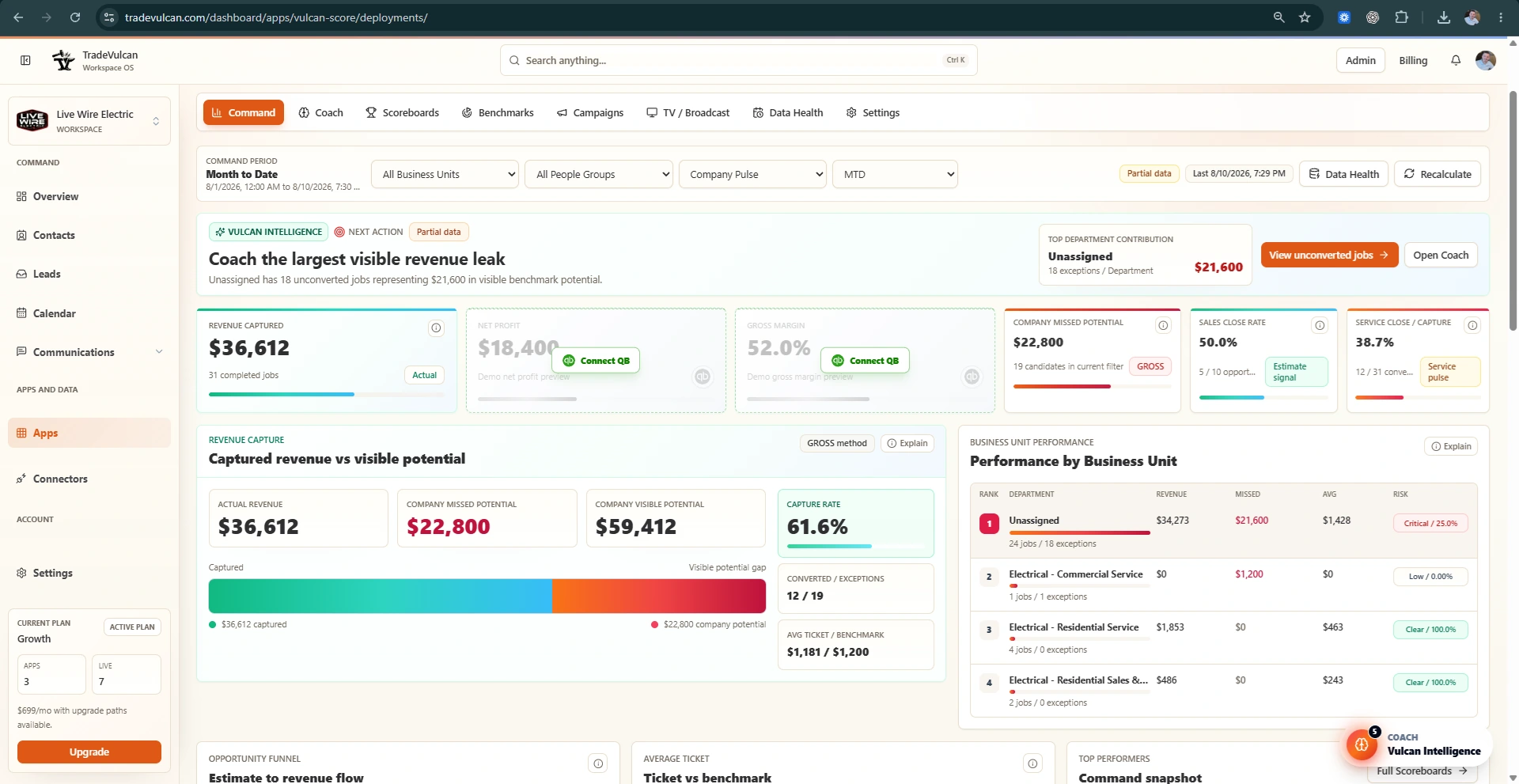
Vulcan Score is an analytics app designed to empower home-service operators by turning their ServiceTitan or Housecall Pro data into clear, actionable insights. With Vulcan Score, you can create KPI scorecards, dynamic TV dashboards, leaderboards, goals, competitions, and track performance rewards across your teams including technicians, CSR/call center staff, and sales personnel.
This guide will help you connect, configure, and verify Vulcan Score so you can start making data-driven decisions that boost operations and employee engagement.
Setup Prerequisites
- Access to a connected ServiceTitan or Housecall Pro account with appropriate permissions to sync data.
- An assigned connector instance for deploying the Vulcan Score app.
- Basic familiarity with TradeVulcan's admin interface and connector management.
Step-by-step Setup
1. Connect Your Data Source
- Log in to your TradeVulcan admin portal.
- Navigate to
Connectorsand select either ServiceTitan or Housecall Pro depending on your CRM system. - Authorize access if not already connected, ensuring permission to access CRM facts and operational data.
2. Deploy Vulcan Score App
- Go to the
Apps & Integrationssection in the TradeVulcan admin area. - Search for Vulcan Score and select it.
- Assign Vulcan Score to the connector instance linked to your data source.
- Confirm deployment and wait for initial provisioning.
3. Run the First Data Sync
- Trigger the first synchronization to import and process data.
- Monitor the sync progress via the connector status dashboard.
- Review sync logs to verify data completeness and confidence levels.
Key Features
- Explainable KPI Snapshots: Precomputed metrics from normalized CRM facts to provide clear operational insights.
- TV-friendly Dashboards & Scoreboards: Display command centers and leaderboards optimized for office TVs or team areas.
- Goal Tracking & Competitions: Set, monitor, and update team or individual goals to drive motivation and accountability.
- Performance Rewards Ledger: Manage manager-approved incentives and reward programs transparently.
Verification
After initial sync, confirm that Vulcan Score is properly processing and displaying your data by:
- Accessing the dashboards and reviewing scorecards for expected KPI values.
- Checking leaderboards for correct team or technician ranking data.
- Validating goal status and rewards ledger entries for accuracy.
Troubleshooting
- Data sync fails or stalls: Check connector authorization and network connectivity. Reauthenticate if needed.
- Dashboard data not updating: Confirm scheduled sync jobs are running without errors in the admin portal logs.
- Incorrect KPI metrics: Revisit data mapping and source system fields; refresh sync and reprocess metrics.
- UI display issues: Clear browser cache or try alternative browsers; ensure your display devices meet minimum resolution requirements.
Support Handoff Notes
When handing off Vulcan Score to operational users or managers, provide the following:
- An overview of key dashboards and what KPIs are tracked.
- Instructions on where and how to monitor performance and rewards.
- Contact info for TradeVulcan support or your implementation admin for assistance.
- Documentation on how to trigger manual data syncs if immediate updates are needed.
By carefully following this guide, your teams will quickly benefit from actionable insights and data-driven motivation using Vulcan Score.