
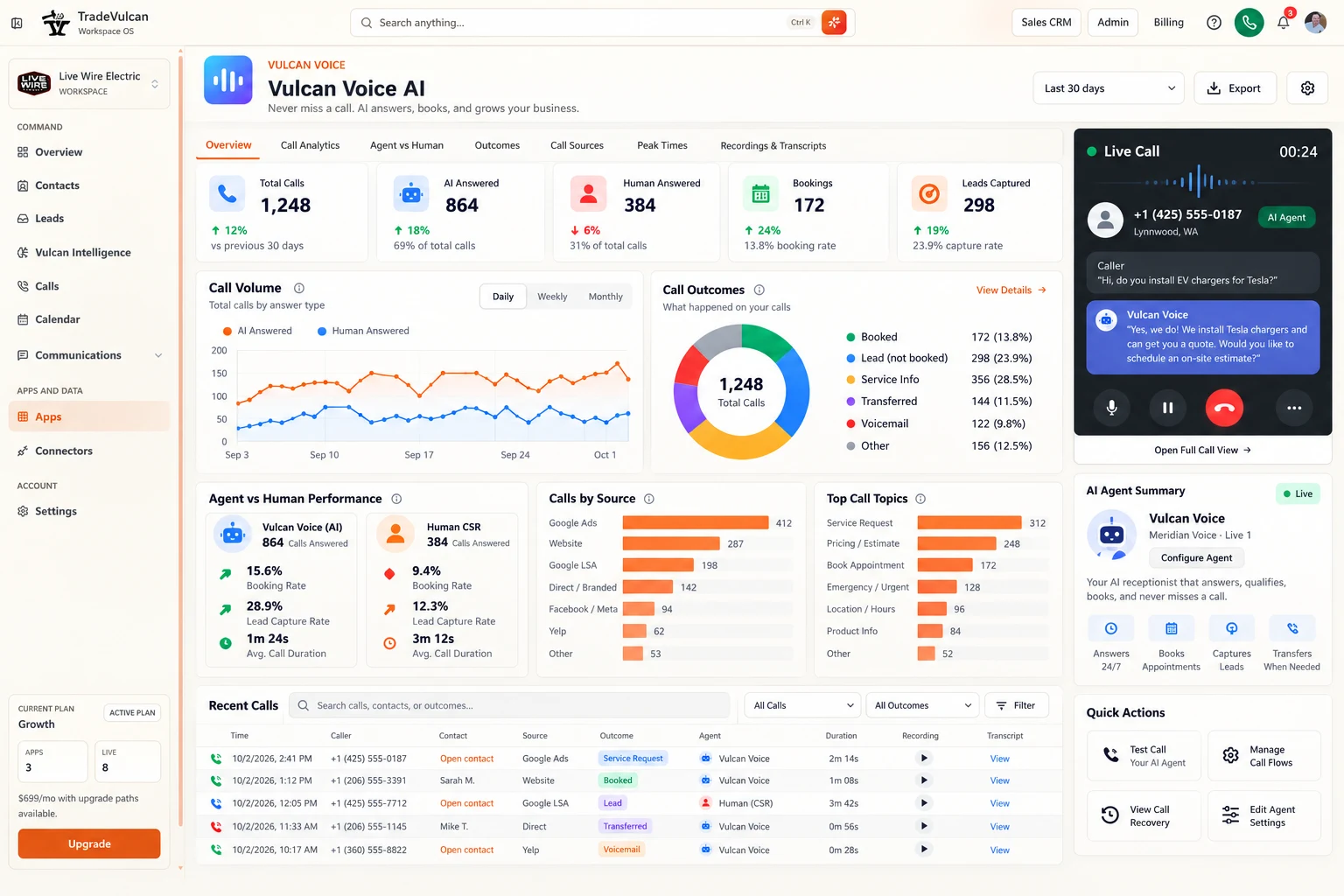
Set the scope before reading a number
Open Vulcan Voice AI and choose the Voice agent, Voice line and Date range. The standard options are Today, Last 7 days, Last 30 days, Last 90 days and Custom dates. For a custom period, choose Custom dates, fill From and To and select Apply. The maximum supported range is 366 days.
Read the scope line under the filters: it identifies the date range, time zone, selected agent and whether the report includes authorized test calls. Standard reporting excludes recognized test/demo calls. Calls are grouped by when the customer interaction started, not when a booking was later completed.
Choose the view for your question
| View | Use it for |
|---|---|
| Overview | KPI summary, volume, outcomes, initial handler comparison, sources, topics and recent calls. |
| Call Analytics | Answer and booking rates, duration distribution, first AI voiced-audio timing and coverage gaps. |
| Agent vs Human | Initial answering handler, booked calls, booking rate and duration; missing human-first coverage remains N/A. |
| Outcomes | Final dispositions and confirmed appointment, cancellation and attribution evidence. |
| Call Sources | Captured acquisition attribution and service topics. |
| Peak Times | Call starts by local weekday and hour. |
| Recordings & Transcripts | Search, filter and open individual call records. |
| Live View | Supported active-call monitoring and authorized human controls. |
Drill down without losing the denominator
Click a KPI, outcome, source or topic to inspect matching calls. Filters are carried through navigation, so a drill-down can change the entire report's scope—not only the visible table. For example, after filtering to booked calls, a 100% booking rate describes that selected set, not all calls.
Before comparing results or exporting, inspect the current filters. Reset the relevant filters or return to the unfiltered app dashboard to review the full period. Search calls by customer name or phone, then select Filter. The current search is not a full-transcript keyword search.
Overview shows a compact recent-call list. The detailed view paginates matching records; the charts and totals cover all matching calls, not just the rows on the current page.
Use the side panels
Select an agent to see its saved voice, language, capabilities and configuration readiness. Configure Agent opens its setup when you have permission. Quick Actions provide Call history, Live calls, Voice agents and, for an eligible selected agent, Test agent.
Saved configuration readiness is not a real phone acceptance test. Live Calls has its own connection, freshness and permissions, independent of the historical analytics.
Read Data coverage & definitions
Expand this section whenever a metric is N/A, unknown or unexpectedly low. It explains call scope, missing handling or attribution evidence, pending outcomes and the metric version. Reload the report to obtain a fresh saved-data snapshot; viewing a chart does not launch a new analysis of old calls.