
A question is a decision point
An agent may need clarification about a service, a claim, an asset or which sections should change. Open the question in the project’s Conversation or Review context and read its target, rationale and proposed result. Do not answer from the headline alone.
Questions can refer to specific pages and sections. Use the available target links to locate the affected work. Check whether the question is current or part of Saved answers and earlier questions before responding.
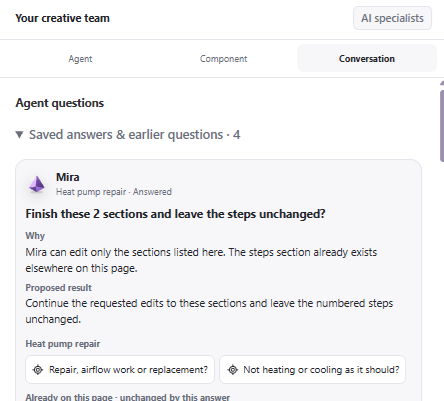
Open the question to review its reason and exact scope before answering. This is a detail crop of the supplied Studio capture.
Give an answer the team can act on
Answer the actual choice and name what should stay unchanged. Instead of “do whatever looks best,” write: “Update the two service-explanation sections. Leave the numbered steps unchanged. Use only the warranty wording already approved in the brief.”
For a missing business fact, provide a verified answer or ask the team to omit the unsupported claim. Do not ask the agents to estimate a license, warranty, review count or financing term.
Review is an ongoing inbox
Open Review to inspect the current findings. New work can create new review items even after earlier ones were addressed. Follow the saved page and version attached to a finding; a correction to an old revision may not prove the current revision is ready.
Quinn’s independent review helps identify visual, content and accessibility issues. A clean automated review is not a substitute for your own factual review, real-device testing or specialist advice where required.
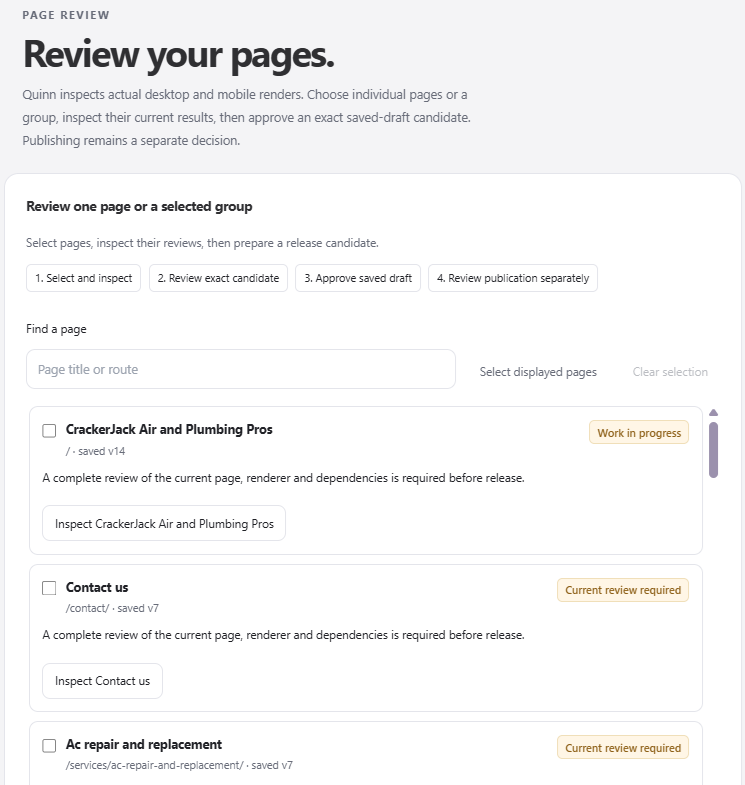
Inspect one page or a selected group, then review the exact candidate. A current review is needed for the saved version you intend to release.
Work through a finding
- Read the issue and the expected acceptance condition.
- Locate the affected page or component.
- Request or make the specific correction.
- Wait for the saved result and inspect it.
- Use the available review action to record the outcome or request another pass.
Check the surrounding page after a correction. Fixing one headline should not inadvertently change an approved price, contact path or unrelated service description.
Know what each state proves
Answered means an answer was recorded; it does not prove all downstream tasks finished. Saved means a draft artifact exists; it does not prove it passed review. Reviewed is not the same as published. Confirm the actual publication receipt and public site separately.
Handle stale questions carefully
If the project says a question no longer matches the current saved page, refresh the project and inspect the latest question. Preserve unsaved answers before navigating. Do not approve an obsolete scope simply to clear a notification.
For a persistent blocked state, note the project, page, task or question reference, time, exact message and what you already tried. Share a redacted screenshot through support. Leave credentials and customer information out of public messages.