
Select the right page and section
Open Build in the correct website. Select the page from the page picker, inspect its saved preview and click the section you want to change. Confirm the highlighted target before writing a request. A page-level instruction and a section-level instruction do not have the same scope.
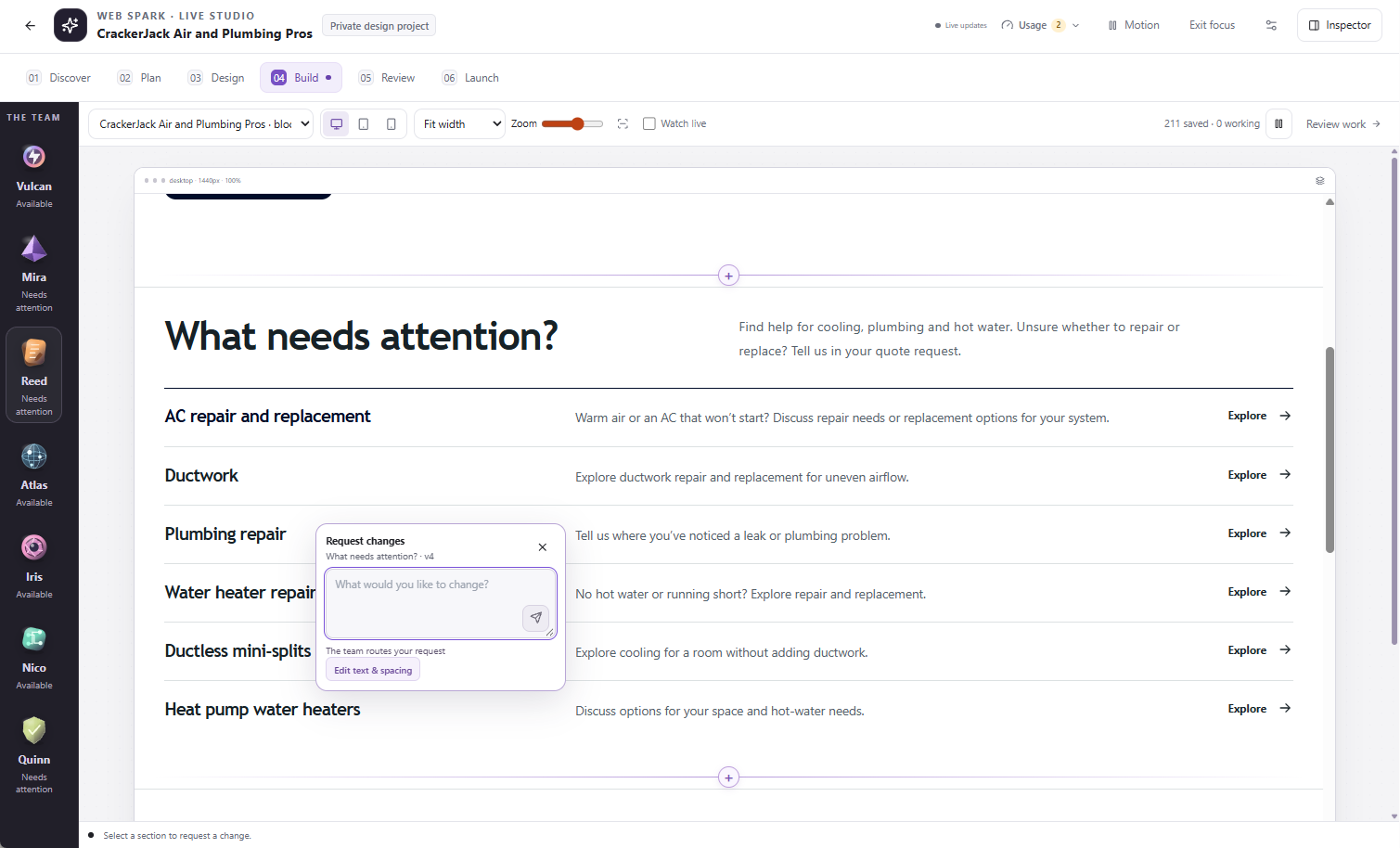
Select the section you want to change. The request stays attached to that page and section.
Request a focused change
- Select the target section.
- Open the contextual Request changes composer or the relevant Conversation view.
- Describe the change, the approved details to keep and the result you expect.
- Send once, then follow the saved task or question.
- Inspect the revised section and its neighboring content before approving further work.
Example: “On this panel-upgrade section, replace the long introduction with two short paragraphs. Keep the approved offer, phone number and service-request link unchanged. Do not edit other pages.”
Where the Component panel offers direct text or spacing controls, use them for supported manual adjustments and save through the interface. Do not assume an unsaved local change is part of the current draft.
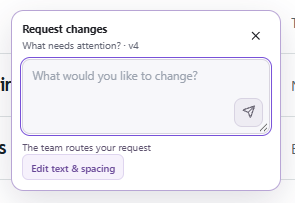
The request box identifies the selected section and saved version. State what should change and what should stay.
Add a section
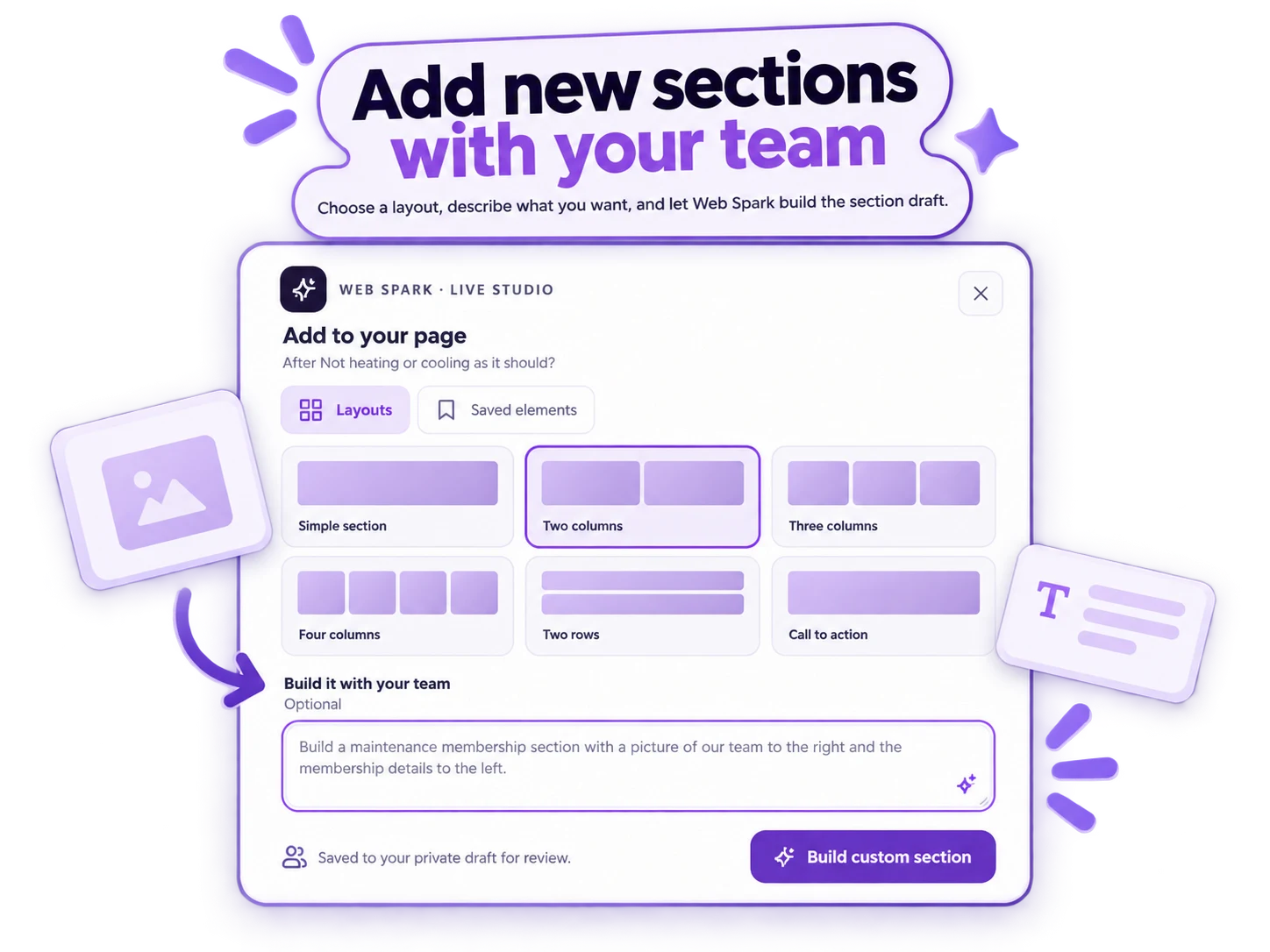
Use the insertion control between sections to open Add to your page. Choose a layout such as Simple section, Two columns, Three columns, Four columns, Two rows or Call to action. The Saved elements tab provides the reusable sections available to this project.
For an AI-assisted addition, describe the content under Build it with your team, then choose Build custom section. For example: “Add a two-column membership section using our approved benefits on the left and our owned team photograph on the right. Do not invent a price or discount.”
Review the inserted result
Confirm the section is in the intended position, matches the surrounding design and uses the right asset and contact action. Check phone and desktop layouts. Adding a section can affect spacing and navigation, so inspect the page around it rather than only the new content.
When an edit does not proceed
Open any agent question or review item. Missing facts, source changes, exhausted AI allowance or a blocked dependency require different responses. If the interface reports a newer saved version, keep your unsaved text separately and load the current version before retrying.
When AI allowance is unavailable, the interface may still offer manual layouts or saved elements. Use only the controls currently enabled for the project. Do not repeat generation requests to try to bypass the limit.
Draft changes and live changes are separate
Saving or accepting an edit does not automatically replace the public website. Review the selected pages and release candidate, then follow the separate launch approval. If only one service page changed, review that selected scope and check the preview includes any retained pages you intend to keep.