
Less guessing.
More getting it done.
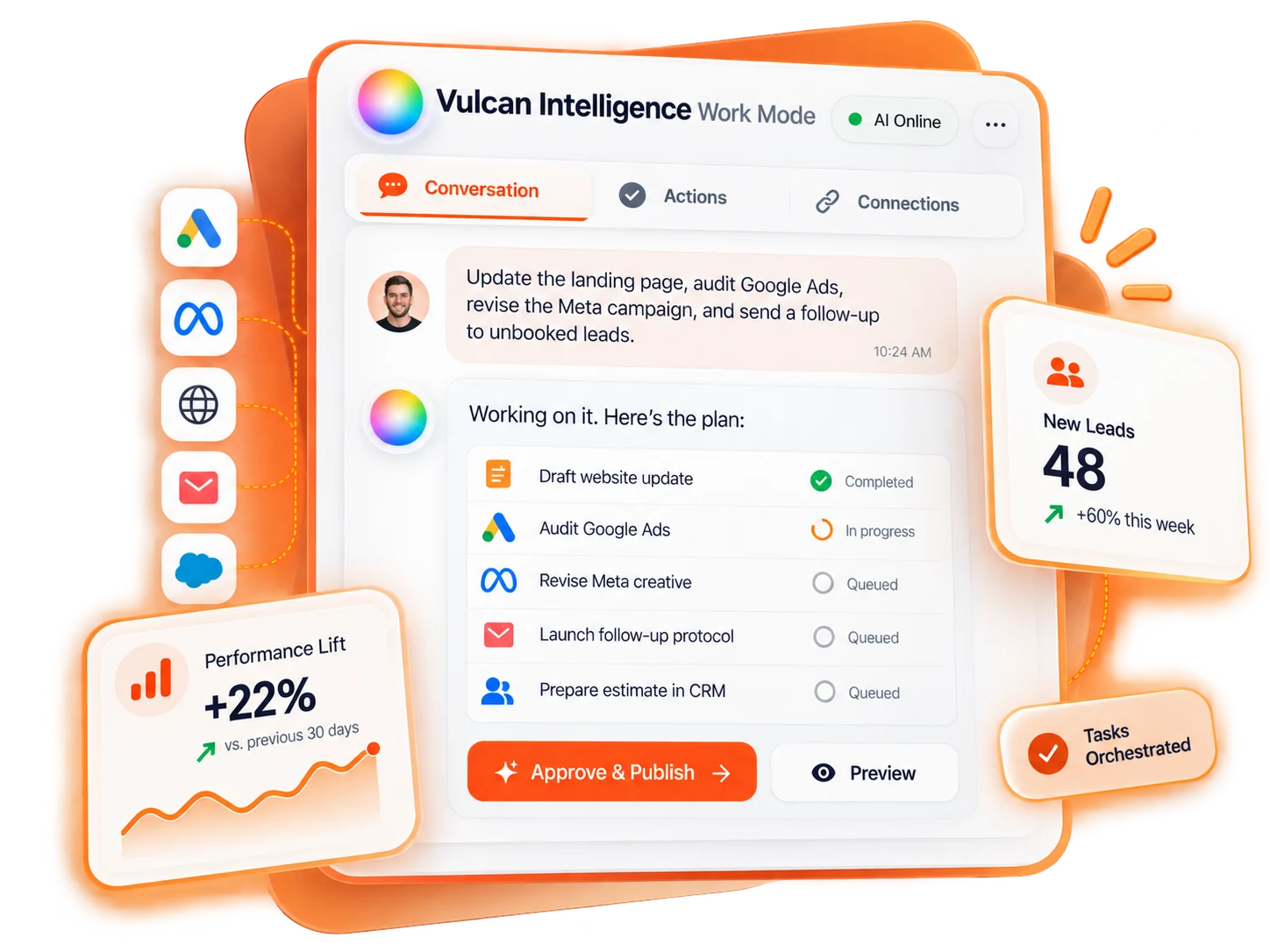
Start with a clear request. Find the right app or connection. Review the exact change. Follow the result.
Choose your next step.
The guides distinguish available action paths, read-only context and owning-app handoffs. Your current workspace, app permissions and connection settings determine what you can execute.
Find a guide for the work.
Examples you can adapt.
Results you can verify.
35 guides
Get started
Introduction to Vulcan Intelligence Work Mode
Learn how conversation, authorized business context, approval cards and saved results fit together—and choose the right kind of request.
Read guideSet up Work Mode and complete your first task
Check workspace access, choose a record, make a read-only request, then review one small change and its saved result.
Read guideWrite useful prompts and keep Work on the right page
Use exact targets, date ranges, constraints and expected results to turn broad requests into focused analysis and reviewable work.
Read guideReview approvals, saved results and unconfirmed outcomes
Understand Before/After previews, approval expiry, queued work, provider acceptance, conflicts and safe status refreshes.
Read guideOrganize conversations with project folders and history
Create, pin and rename folders, move chats and return to saved work without confusing organization with shared access or merged context.
Read guideWork by app
Work Mode by app: choose the right workflow
Find the right guide for Site Spark, Close Forge, Lead Forge, contacts, messaging, property intelligence and app-specific handoffs.
Read guideUse Work Mode to create, edit and publish Site Spark forms
Create unpublished forms, refine supported text and style, reorder ordinary fields, and handle publishing as a separate reviewed action.
Read guideInspect Site Spark booking, chat, CRM and embed settings
Read saved configuration in Work Mode, distinguish settings from live tests, and route unsupported changes back to Site Spark.
Read guideCreate a Close Forge follow-up draft with Work Mode
Choose a supported CRM account and prepare a disabled two-touch estimate follow-up with explicit channel, copy and timing.
Read guideAnalyze and improve Close Forge follow-up workflows
Review a deployment’s actual configuration and recent activity, then apply selected recommendations to a draft with its original scope preserved.
Read guideConfigure, publish, pause and resume Close Forge safely
Review exact versions and consequences before configuration, workflow publication, deployment pause, resume or archive.
Read guideUse Work Mode with Lead Forge campaigns and reporting
Query leads and campaign reports, create local tracking drafts, and keep local campaign settings separate from live advertising accounts.
Read guideFind contacts and add internal lead notes with Work Mode
Resolve the right contact and inquiry, change a local display name or append a team-only note with exact approval.
Read guidePrepare and send one-to-one SMS or email with Vulcan Intelligence
Resolve an exact recipient, review an editable message, confirm the send and distinguish provider acceptance from delivery.
Read guideBuild Property Intelligence reports with Work Mode
Filter actual year-built and geography fields, inspect missing data and keep modeled opportunities separate from collected revenue.
Read guideUse Work Mode alongside CallSpark and Vulcan Voice
Find available call context, prepare operational follow-up and keep phone routing, voice-agent settings and live calling in their owning apps.
Read guideUse Work Mode alongside Proof Pulse
Prepare evidence-based proof content and publishing checklists while keeping approval, customer permissions and distribution in Proof Pulse.
Read guideUse Work Mode alongside Map Forge and local marketing
Research public competitors, prepare local-content plans and separate recommendations from Business Profile or Map Forge changes.
Read guideUse Work Mode alongside Vulcan Score and performance coaching
Prepare coaching from verified metrics and supplied scorecards without changing KPI definitions, contests or incentives through unsupported controls.
Read guideChoose between Work Mode and the Web Spark website studio
Understand the distinct paths for Web Spark projects and customer websites connected through GitHub, Vercel or Desktop Commander.
Read guideConnect plugins
Connect Work Mode plugins and select the right resources
Set up personal provider connections, review account selection and understand why connected status is not permission to perform every action.
Read guideConnect Windsor.ai to Work Mode and select advertising accounts
Authorize your Windsor account, choose the source accounts Work may use, save permissions and verify the connection before reporting.
Read guideAnalyze Google Ads and Meta performance through Windsor.ai
Request scoped campaign reports with verified fields, explicit dates and clear attribution, currency and data-coverage notes.
Read guideReview and approve Windsor.ai advertising actions
Discover the currently supported provider action, check exact parameters and approve a bounded change without mistaking local tracking for live advertising.
Read guideTroubleshoot Windsor.ai connections and incomplete reports
Resolve account selection, reauthorization, tool changes, field discovery and partial-report errors without repeating uncertain ad changes.
Read guideConnect GitHub and prepare reviewed website changes
Select customer repositories, verify a fine-grained token and use branches, file reviews and pull requests before any publication.
Read guideConnect Vercel and deploy a reviewed customer website
Use the selected team and project through TradeVulcan’s Vercel REST adapter, with preview-first releases and separate domain verification.
Read guideConnect Desktop Commander for authorized files and commands
Choose an online computer and working folders, separate file access from terminal permission, and verify process results before claiming a build succeeded.
Read guideUse Context7 for public technical documentation in Work Mode
Select supported public libraries and retrieve reference material without sending private code or treating documentation as execution authority.
Read guideUnderstand available plugins and Coming soon tiles
Distinguish live Work connections from preview tiles, separate platform connectors from Work plugins, and choose a supported alternative.
Read guideA safe website workflow: inspect, branch, preview and release
Coordinate GitHub, Vercel or Desktop Commander without conflating source changes, build starts, preview deployments and public publication.
Read guideCreate and troubleshoot
Create PDFs, Word documents, Excel reports and images
Request real private deliverables, use actual image references for edits, and distinguish file generation from sending or publication.
Read guideResearch public businesses and prepare internal candidate lists
Separate public research from private workspace records and build reviewable lists without inventing contacts or authorizing outreach.
Read guideTroubleshoot Work Mode access, approvals and interrupted tasks
Recover from missing capabilities, changed versions, connection failures and uncertain results without bypassing controls or repeating effects.
Read guideUnderstand Work Mode access, usage and provider costs
Check who may use an action, distinguish file and planning work from provider spending, and handle limits without assuming unlimited or free usage.
Read guideStart with the saved status.
Find the failing stage, inspect the existing result, and recover without repeating an uncertain action.
Troubleshoot Work Mode